
1. Microsoft JDBC Driver for SQL Server can be downloaded here: http://msdn.microsoft.com/en-us/sqlserver/aa937724.aspx
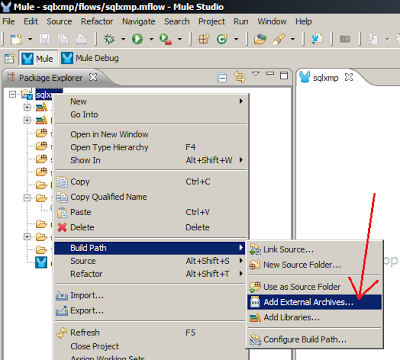
2. Add theSQL Server JDBC connector to your project:
Project –>Build Path –> Add External Archives…


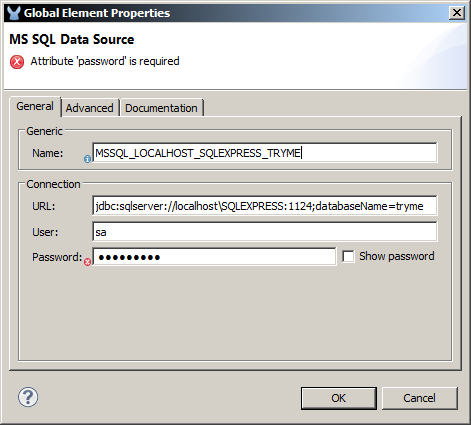
3. In the connections explorer add a new connection global element for data source by selecting MS SQL Data Source

4. Fill in connection information. JDBC urls for SQL Server should be of form:
For default instance on default port 1433
jdbc:sqlserver://servername:1433;databaseName=databasename
For named instance with non-default port:
jdbc:sqlserver://servernameinstancename:port;databaseName=databasename
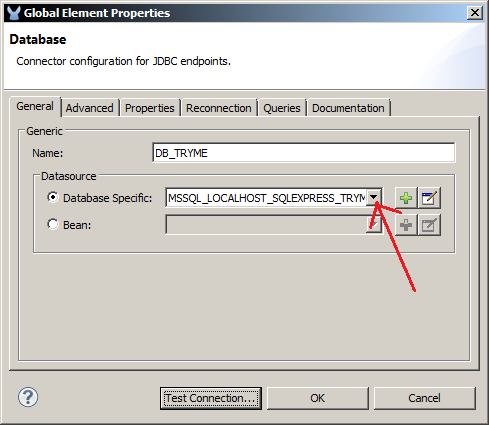
5. Now create database connection global elment and select the sql server database connection defined in steps

Note that the SQL Server Browser service may need to be active for JDBC to see the server.
Additional info and Mulesoft tutorial:
http://www.mulesoft.org/connectors/microsoft-sql-server-connector